Your personal information usually slips away in boring moments, not in movie-style hacks. A reused password, a rushed click, or an old app permission can do more damage than most people expect.
If you want to protect data online without learning a pile of tech terms, start with a few habits that block the most common risks. The best part is that most of them take minutes, not hours, to defend against cyber threats.
Key Takeaways
- Secure your online accounts first: use a password manager for strong, unique passwords or passkeys, and enable two-factor authentication (2FA) everywhere, starting with email.
- Beat phishing by pausing on urgent messages—type site addresses manually instead of clicking links, and avoid public Wi-Fi for sensitive tasks without a VPN.
- Keep devices safe with automatic updates, HTTPS checks, tight privacy settings, screen locks, and regular cleanups of old accounts and unused apps.
- Always maintain backups: one in the cloud and one offline, to recover from breaches or mishaps without panic.
Start with your online accounts, because they unlock everything
Think of your online accounts like the doors in your home. If one weak key opens all of them, one mistake can spread fast.
So, start with passwords for your online accounts. Use a password manager and let it create strong passwords that are different for every account. Long and random beats short and clever. Begin with the accounts that matter most, like email, banking, cloud storage, school logins, and payment apps.
In 2026, passkeys are even better when a site offers them. They let you sign in with your phone or biometric authentication like a fingerprint or face scan, which makes them harder to steal or reuse. If you’re new to them, Google’s passkeys overview explains the basics in plain language. Keep a backup device or recovery method ready, though, so you don’t get locked out.
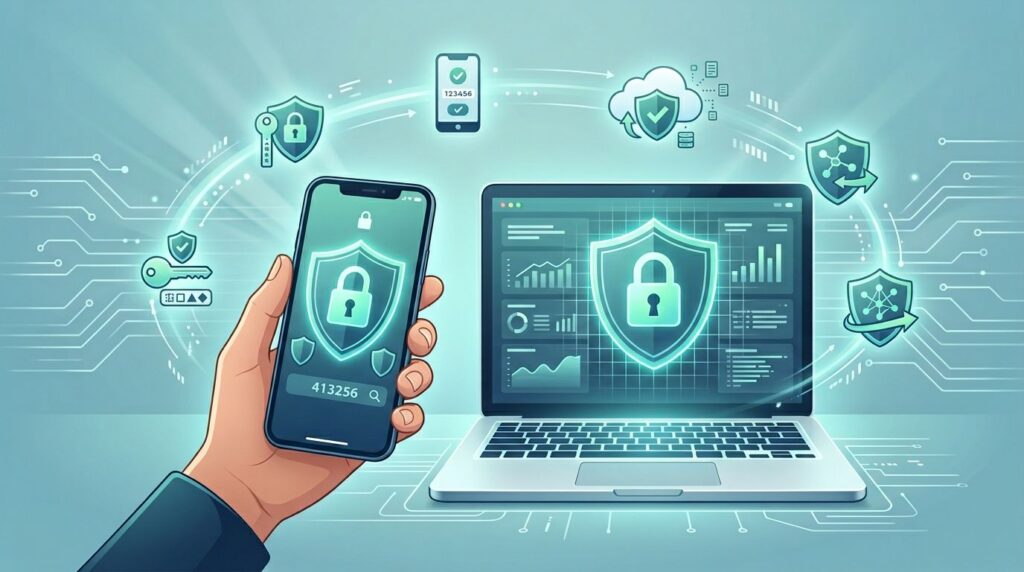
Next, turn on two-factor authentication wherever you can. That extra step, usually a code or approval prompt, blocks many account takeovers. An authenticator app, security key, or multifactor authentication is stronger than text messages, but any 2FA is better than none. Save your recovery codes somewhere safe, like a locked note or printed copy.
Your email account is the reset button for most of your online life, so protect it first.
That one move matters because password resets, receipts, and identity checks often flow through email. If your email is secure, the rest of your accounts are much harder to steal.
Make browsing and messages safer every day
Phishing scams are still the biggest online risk in 2026, but they look different now. These scams can lead to identity theft or exposure of your data on the dark web. Scam emails, texts, and calls often sound polished because AI helps write them. Some attacks even use voice cloning, while others hide behind QR codes on posters, parking meters, or fake invoices.
So, slow down when a message creates pressure. “Pay now,” “verify today,” and “your account will close” are classic push tactics. Instead of tapping the link, open the app yourself or type the site address into your browser. That one habit blocks a huge number of fake login pages and malware delivered through malicious links.
This matters even more because some newer attacks don’t stop at stealing passwords. They try to steal your live session after you sign in. Microsoft’s write-up on Tycoon2FA phishing tactics shows how these kits can trick people into handing over access after a normal-looking login. In plain terms, 2FA helps a lot, but it can’t save you if you sign in on a fake page.
Public wi-fi needs the same kind of caution. At a cafe or airport, avoid banking, payroll, or work logins on open networks unless you use a trusted virtual private network (VPN). For sensitive tasks, consider private browsers too. Also check for HTTPS, which provides encryption, before entering personal details, because secure sites encrypt the connection between you and the website.
Install software updates regularly. Turn on automatic updates for your phone, laptop, browser, and apps. Many attacks use old software bugs, not advanced tricks. A fully updated device is like a door with a working lock.
For everyday safety, keep these small habits in mind:
- Preview links before you open them, especially on phones.
- Don’t scan random QR codes when you can type the address instead.
- If a caller claims to be your bank, hang up and call the official number.
- Never send login codes to anyone, even if they sound legitimate.
Frequently Asked Questions
What are passkeys, and should I use them?
Passkeys let you sign in with your phone or biometrics like a fingerprint, making them harder to steal than passwords. They’re available on many sites in 2026 and work best with a password manager. Set up a backup recovery method to avoid lockouts.
Is two-factor authentication (2FA) enough to protect my accounts?
2FA adds a crucial second step like an app code or prompt, blocking most takeovers even if your password leaks. Use an authenticator app over texts for stronger protection, and always save recovery codes safely. Start with your email, as it resets everything else.
How can I spot and avoid phishing scams?
Watch for pressure tactics like “act now” in emails, texts, or calls—AI makes them look real now. Instead of clicking links or scanning QR codes, open apps or type URLs yourself. Hang up on suspicious callers and contact official numbers directly.
Do I need a VPN on public Wi-Fi?
Yes, for banking or logins on open networks like cafes, a trusted VPN encrypts your connection to block snoops. Check for HTTPS on sites too, and use private browsers for extra caution. It’s a quick habit that stops many hidden risks.
What’s the simplest way to back up my data?
Keep one copy in the cloud and one offline on an external drive you unplug after. This protects against ransomware or theft without relying on a single spot. Do it regularly, especially for photos and documents.
Share less, lock down devices, and keep a backup
The easiest personal information to protect is the personal information you never hand over. So, review your privacy settings on apps, sites, and social media platforms. A weather app doesn’t need your contacts. A shopping site usually doesn’t need your birthday. If a permission feels unrelated, turn it off.
Also clean up old accounts. Unused forums, abandoned shopping accounts, and forgotten cloud folders still hold personal details. These can feed data brokers and expand your digital footprint, so consider data removal services. Set a calendar reminder every few months and do a quick review. This 2026 online privacy checklist is a helpful way to spot gaps you may miss.
On your devices, especially your mobile device, use a screen lock and keep work and personal accounts separate. That matters for remote workers and small business owners because a single shared browser profile can mix files, saved logins, credit card details, and client data. If more than one person uses a device, give each person their own account instead of sharing one login.
A backup is your safety net when something goes wrong, like a data breach. Keep one current copy in the cloud and one offline, like an external drive you unplug after the backup finishes. If ransomware, theft, or a bad sync wipes your files, that offline copy can save you.
Here’s a simple 15-minute reset you can do today:
- Secure your email with a passkey or 2FA.
- Turn on auto-updates on every main device.
- Delete one app you don’t trust or use.
- Check the privacy policy for a new app before installing.
- Install security software if you haven’t already.
- Back up your photos and documents.
Most data problems start with one small shortcut. One reused password, one rushed tap, one old app you forgot about.
The good news is simple: better defaults beat panic. If you protect your email with end-to-end encryption, use passkeys or strong passwords, pause before unexpected messages, and keep a backup, you’re already far safer than most people online.


